How to Transcribe Audio to Text & Add Captions for Free Offline
Learn how to use AI-powered speech-to-text to transcribe audio and automatically generate video captions directly on your Android phone.
In This Article
This article covers How to Transcribe Audio to Text & Add Captions for Free Offline. Learn how to use AI-powered speech-to-text to transcribe audio and automatically generate video captions directly on your Android phone.
Key Takeaways
- Published: May 15, 2026
- Category: Tutorial
- Tags: Audio to Text, Transcription, AI Tools
- Views: 906
- Reading time: ~10 min read
"Learn how to use AI-powered speech-to-text to transcribe audio and automatically generate video captions directly on your Android phone."
Manually transcribing an hour-long interview, lecture, or meeting can take hours of tedious typing and rewinding. Whether you are a student, journalist, or content creator, an accurate speech-to-text tool is an absolute lifesaver.
While there are many cloud-based transcription services, they often charge per minute and require you to upload your sensitive recordings to their servers. Today, we'll show you how to use an advanced AI speech recognition model that runs entirely offline on your Android device to transcribe audio and generate video captions automatically.
[!TIP] ⚡ Quick Answer: How to do it? Simple 3-step guide using AI Transcribe & Captions - Speech to Text offline:
- Launch App: Open the application on your Android device.
- Select Files: Choose the photos or documents from your gallery.
- Convert: Adjust settings and tap convert. The process completes locally on your phone to keep your files secure.
📊 Comparison: Local Android App vs. Online Converters
| Feature | BTTC Offline App | Online Web Tools |
|---|---|---|
| Internet Required | No (100% Offline) | Yes (Required) |
| Privacy & Security | Safe (Files stay on device) | Risk (Files uploaded to cloud) |
| Processing Speed | Instant (Device hardware) | Slow (Depends on upload speed) |
| File Size Limit | No Limit | Usually restricted (< 50MB) |
| Batch conversion | Supported for free | Often paid/pro feature |
Why Use Offline AI Transcription?
- Total Privacy: Your private meetings, voice memos, and interviews never leave your device.
- No Recurring Fees: Stop paying per-minute transcription costs.
- No Internet Needed: Transcribe recordings even when you're on a plane or disconnected from Wi-Fi.
Step-by-Step Guide
We will be using the AI Transcribe & Captions app, which utilizes deep learning to accurately convert speech to text.
1. Install the App
Download the app from the Google Play Store. It features a clean, ad-free interface designed for productivity.
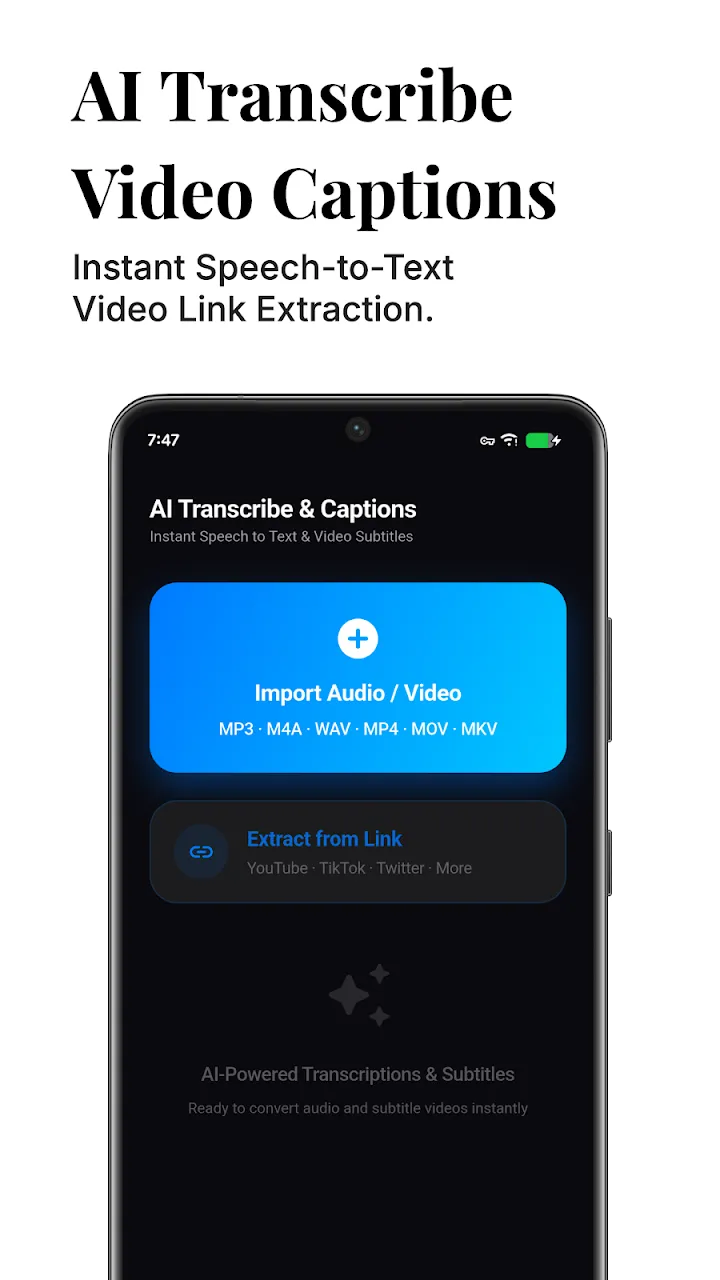
2. Import Audio or Video
Tap the add button to import an existing audio file (MP3, WAV, M4A) or a video file (MP4). You can also use the built-in recorder to record and transcribe speech live!
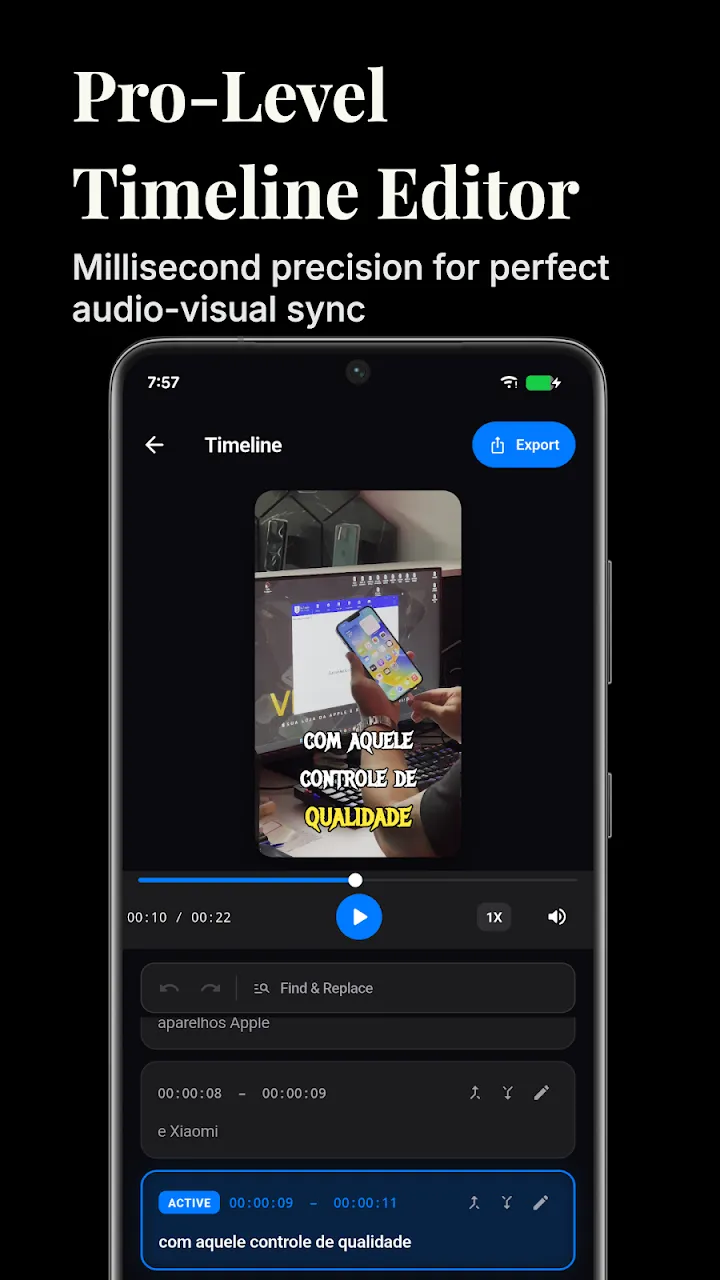
3. Select Language
The AI model supports multiple languages with high accuracy. Select the language that is being spoken in the recording.
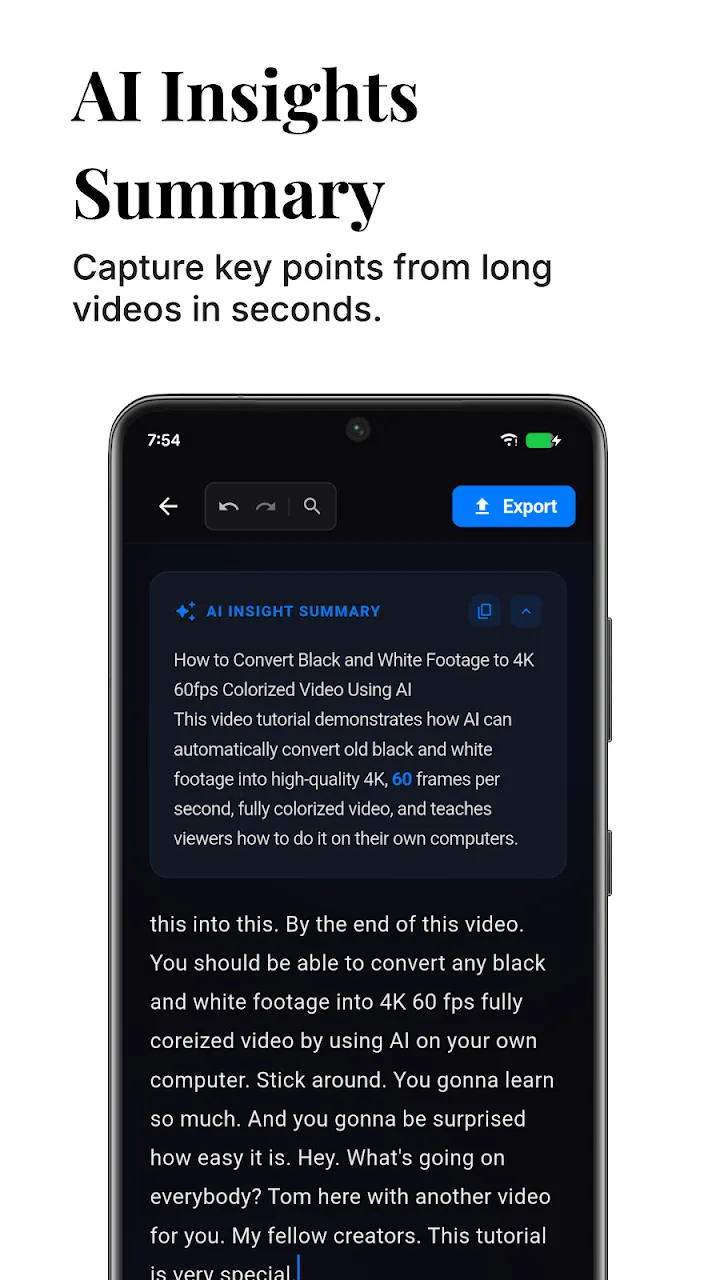
4. Start Transcription
Tap Transcribe. Because the AI model runs locally on your processor, the conversion is fast. The app will generate a highly accurate text transcript with proper punctuation.
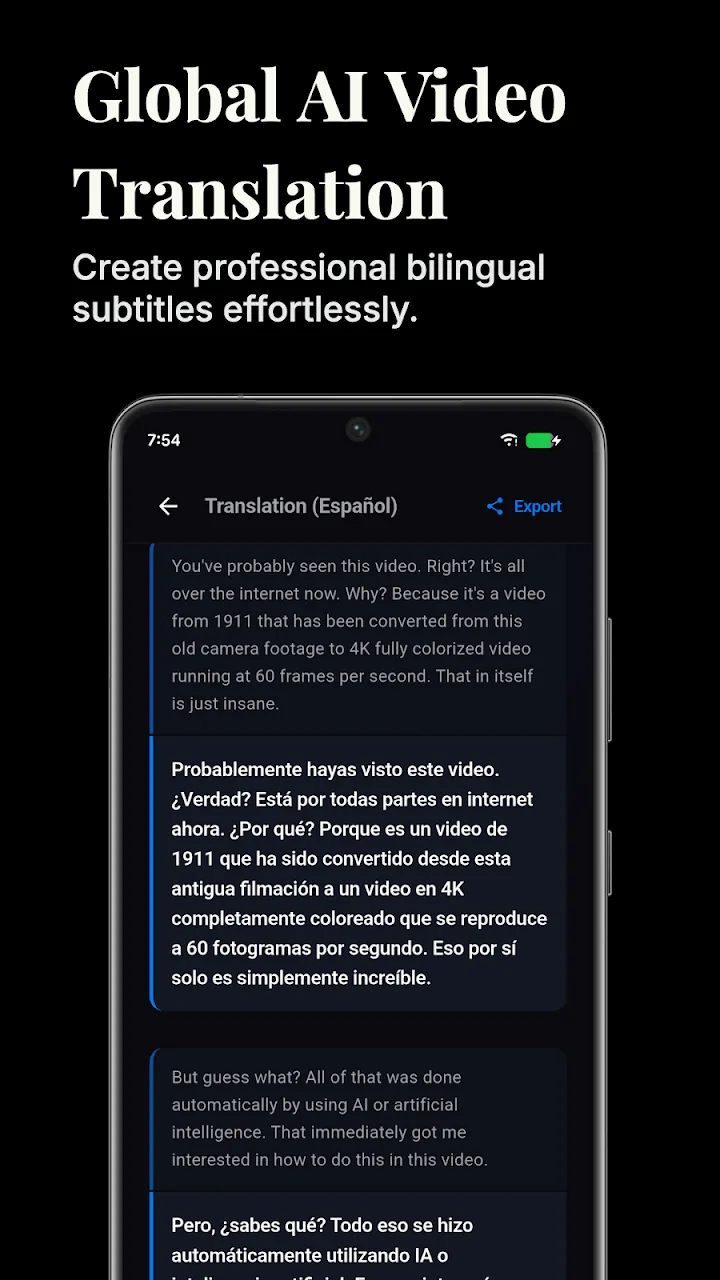
5. Generate Auto Captions (For Videos)
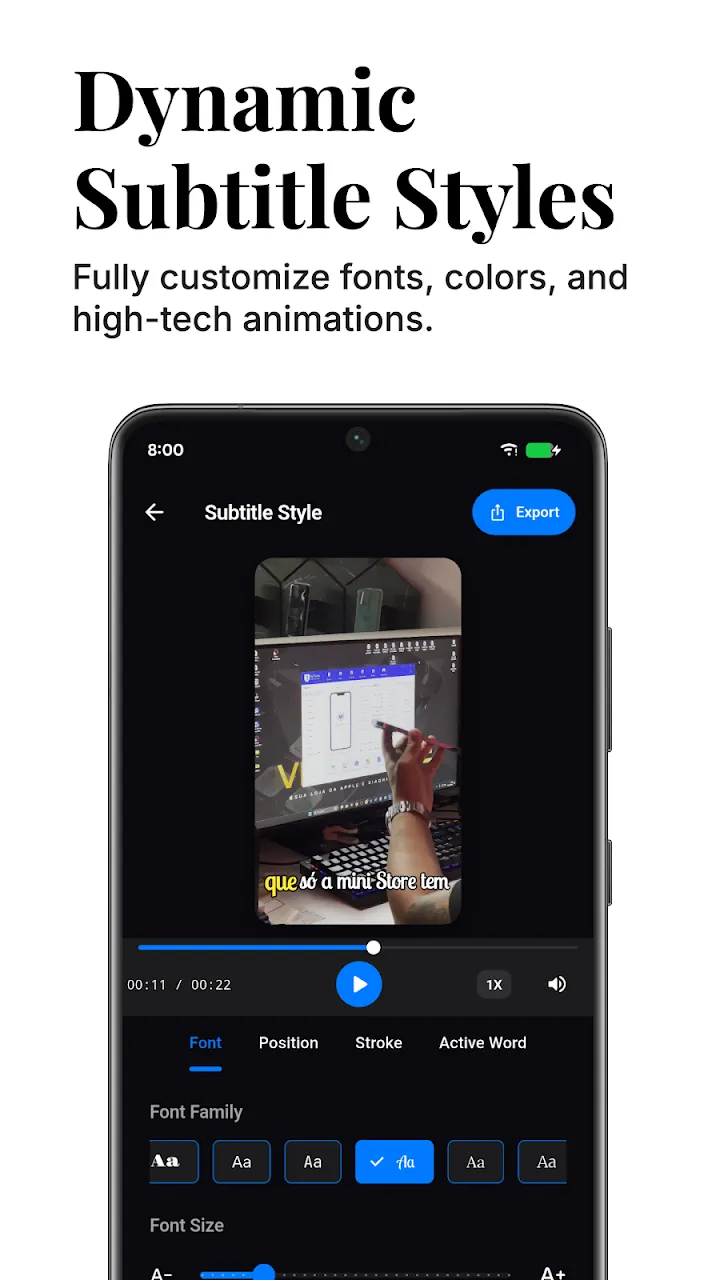
If you are a content creator, you can use the app to automatically generate synchronized subtitles for your videos. Once the transcription is complete, you can export the result as an SRT or VTT file, which can be easily imported into any video editing software.
Conclusion
With on-device AI transcription, converting audio and video into text has never been easier or safer. You can save hours of manual typing while ensuring your recordings remain 100% private.
📥 Download the App to Start Converting Offline
Ready to try it? Get the official app on the Google Play Store for secure, offline processing.