How to Convert Professional RAW & DNG Photos to JPG
Learn how to batch process and convert massive RAW camera files (DNG, CR2, NEF) into shareable JPGs directly on your Android device.
In This Article
This article covers How to Convert Professional RAW & DNG Photos to JPG. Learn how to batch process and convert massive RAW camera files (DNG, CR2, NEF) into shareable JPGs directly on your Android device.
Key Takeaways
- Published: May 15, 2026
- Category: Tutorial
- Tags: Photography, RAW Converter, Image Editing
- Views: 1008
- Reading time: ~9 min read
"Learn how to batch process and convert massive RAW camera files (DNG, CR2, NEF) into shareable JPGs directly on your Android device."
Professional photographers and serious enthusiasts shoot in RAW (like Adobe's DNG, Canon's CR2, or Nikon's NEF) to capture the maximum amount of sensor data. However, RAW files are massive—often exceeding 30MB per photo—and cannot be easily viewed, uploaded, or shared without specialized software.
If you are traveling and want to quickly share a preview of a photoshoot from your camera to your phone, you need a way to convert those heavy RAW files into lightweight JPGs. Let's learn how to do this completely offline on Android.
[!TIP] ⚡ Quick Answer: How to do it? Simple 3-step guide using RAW Converter: DNG to JPG offline:
- Launch App: Open the application on your Android device.
- Select Files: Choose the photos or documents from your gallery.
- Convert: Adjust settings and tap convert. The process completes locally on your phone to keep your files secure.
📊 Comparison: Local Android App vs. Online Converters
| Feature | BTTC Offline App | Online Web Tools |
|---|---|---|
| Internet Required | No (100% Offline) | Yes (Required) |
| Privacy & Security | Safe (Files stay on device) | Risk (Files uploaded to cloud) |
| Processing Speed | Instant (Device hardware) | Slow (Depends on upload speed) |
| File Size Limit | No Limit | Usually restricted (< 50MB) |
| Batch conversion | Supported for free | Often paid/pro feature |
Why Convert RAW on Mobile?
- Quick Sharing: Convert a RAW file to JPG to instantly send it to a client or post on Instagram.
- Space Saving: If you're running out of space, backing up JPGs is much faster and cheaper.
- No Desktop Needed: Process your camera's SD card files while still in the field.
Step-by-Step Guide
We'll use the RAW Converter: DNG to JPG app, which is equipped with a powerful rendering engine capable of decoding complex RAW camera formats.
1. Open the App
Install the app from Google Play. Connect your camera's SD card to your phone via a USB-C reader, or copy the RAW files to your internal storage.
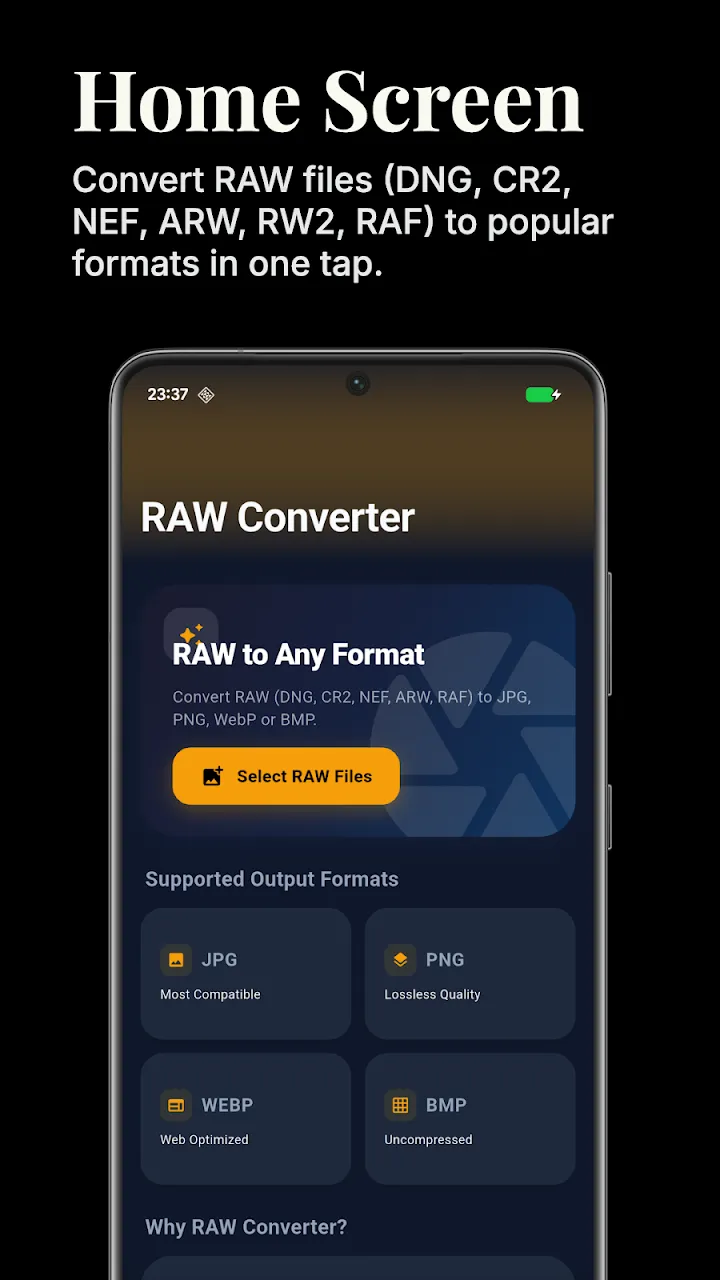
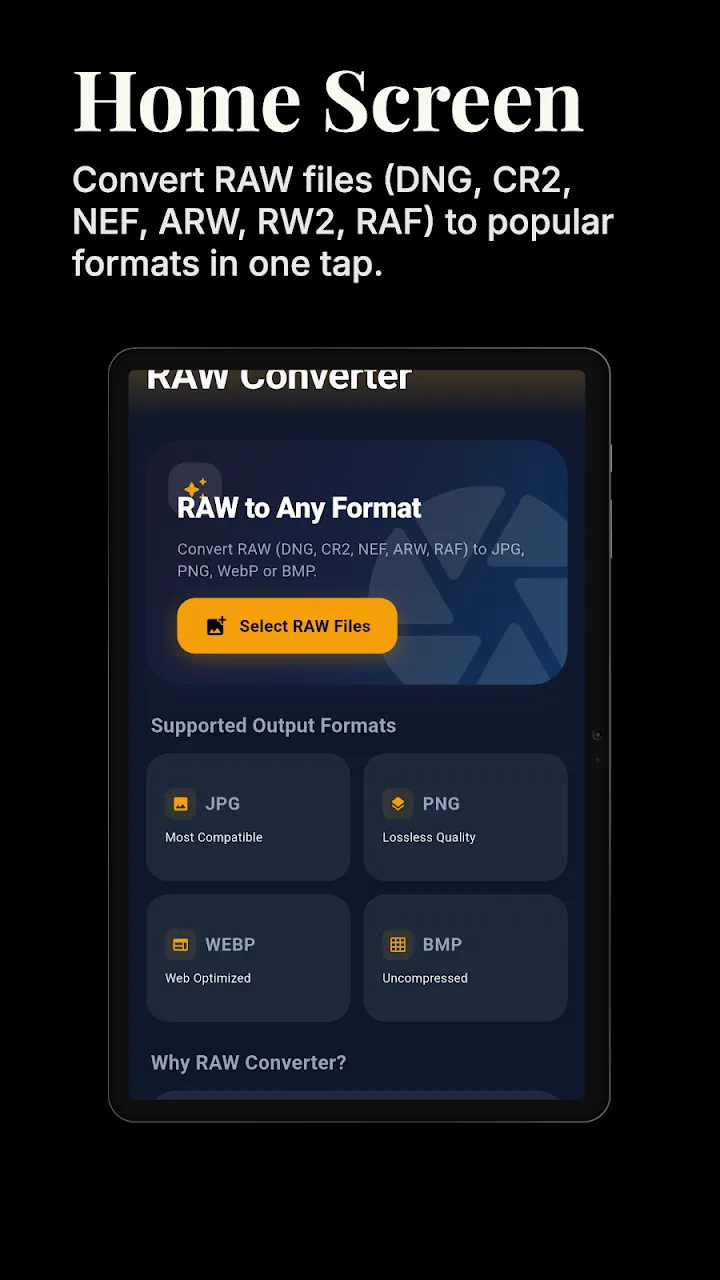
2. Select RAW Files
Browse to your files and select the DNG, CR2, or NEF images you wish to convert. The app supports batch selection, so you can process an entire photoshoot at once.
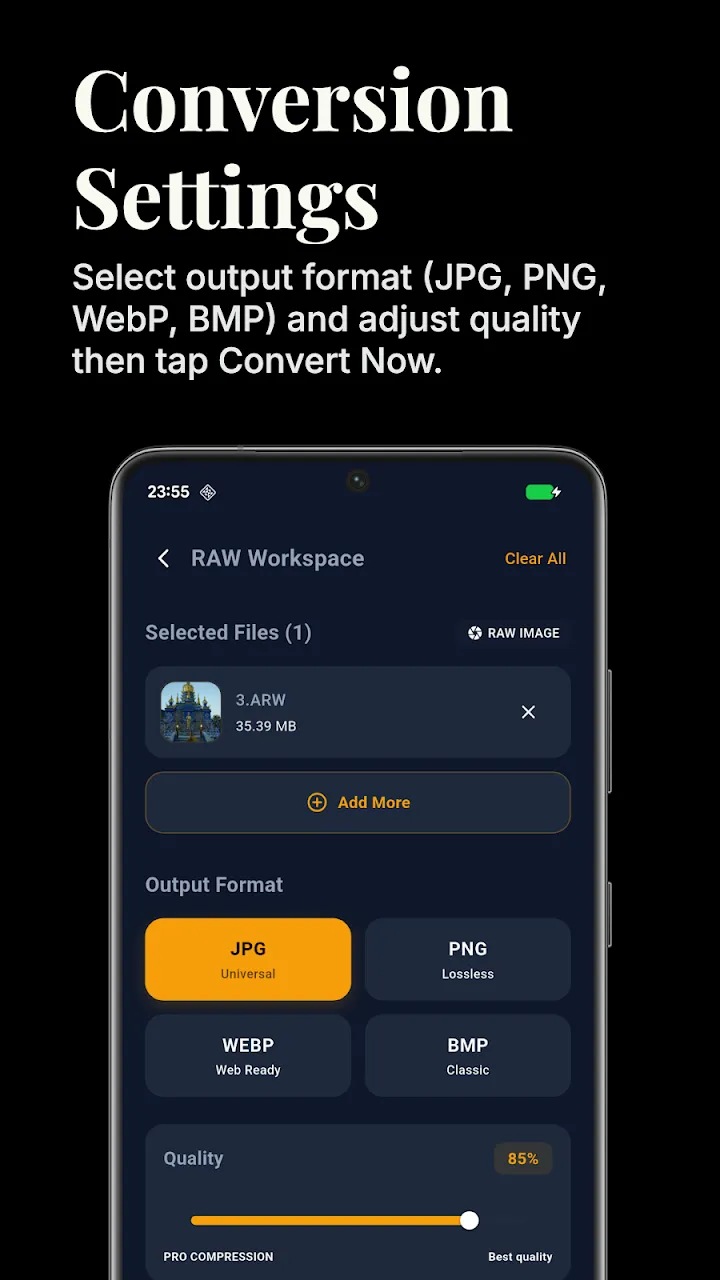
3. Adjust Export Settings
Choose your output format (JPG or PNG) and set your desired quality level. The app extracts the embedded full-resolution preview from the RAW file to ensure stunning visual quality.
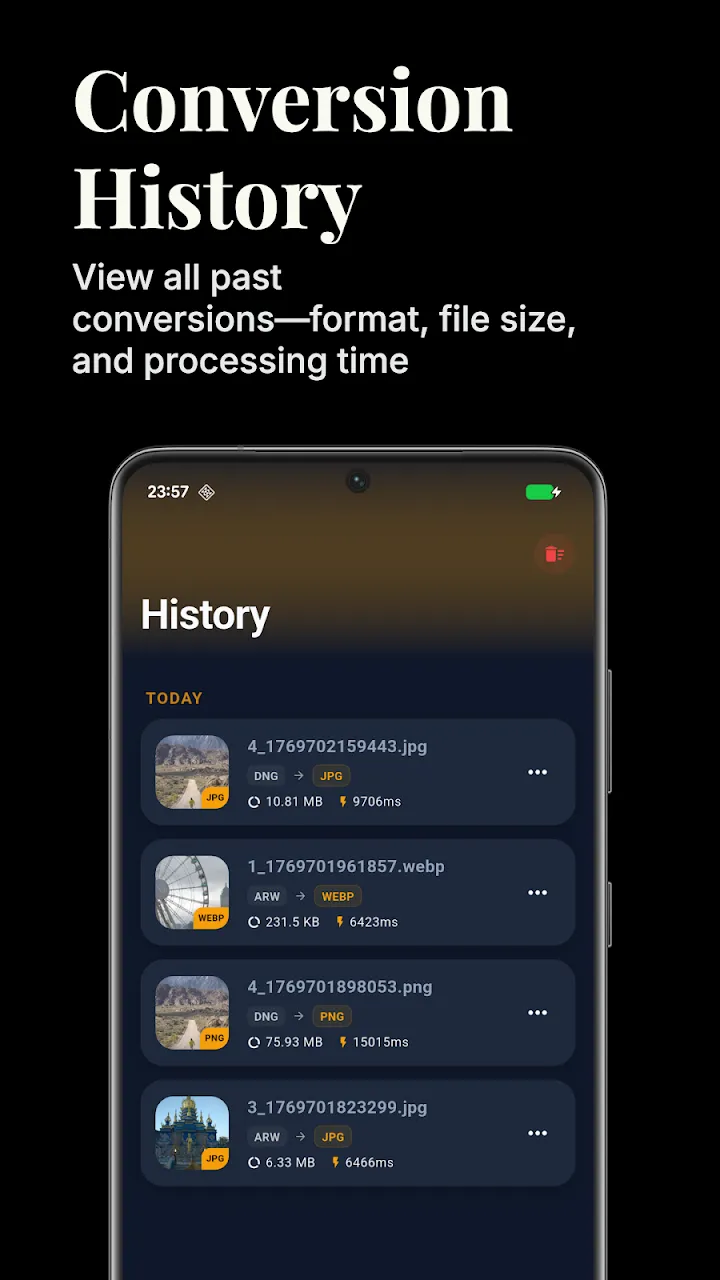
4. Process Offline
Tap Convert. The decoding engine works locally, preventing the need to upload gigabytes of heavy RAW files over a mobile network.
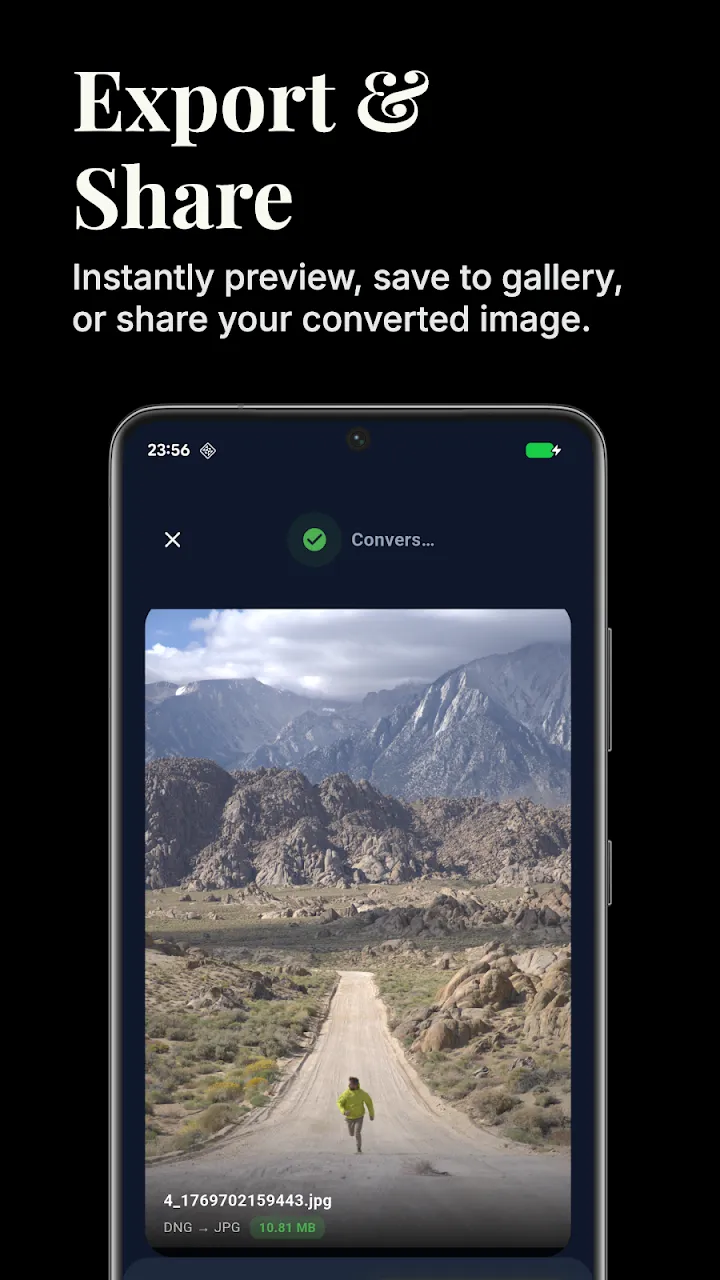
5. Access the JPGs
Your newly minted JPGs are now ready to be imported into lightweight editing apps like Snapseed, or sent directly to your clients.
Conclusion
Shooting in RAW gives you the ultimate creative control, but it shouldn't hold you back from quickly sharing your work. With a mobile RAW converter, your Android device becomes a powerful companion tool for your photography workflow.
📥 Download the App to Start Converting Offline
Ready to try it? Get the official app on the Google Play Store for secure, offline processing.