How to Extract High-Quality Audio (MP3) from MP4 Videos on Android
Learn how to easily and privately extract audio tracks from any video file on your Android device without using your mobile data.
In This Article
This article covers How to Extract High-Quality Audio (MP3) from MP4 Videos on Android. Learn how to easily and privately extract audio tracks from any video file on your Android device without using your mobile data.
Key Takeaways
- Published: May 15, 2026
- Category: Tutorial
- Tags: MP4 to MP3, Audio Extraction, Android
- Views: 948
- Reading time: ~12 min read
"Learn how to easily and privately extract audio tracks from any video file on your Android device without using your mobile data."
Have you ever watched a music video, a podcast snippet, or an educational clip on your phone and wished you could just save the audio? Whether you want to listen to a lecture while commuting or set a funny movie quote as your ringtone, extracting audio from a video file is a very common need.
While there are many online tools available, they often require you to upload your personal videos to the cloud, consuming your mobile data and posing privacy risks. Today, we'll show you how to extract high-quality MP3 audio from any MP4, MKV, or AVI video directly on your Android device—completely offline—using the Mp4 To Mp3 Converter app.
[!TIP] ⚡ Quick Answer: How to do it? Simple 3-step guide using Mp4 To Mp3 Converter - Extract Audio from Video offline:
- Launch App: Open the application on your Android device.
- Select Files: Choose the photos or documents from your gallery.
- Convert: Adjust settings and tap convert. The process completes locally on your phone to keep your files secure.
📊 Comparison: Local Android App vs. Online Converters
| Feature | BTTC Offline App | Online Web Tools |
|---|---|---|
| Internet Required | No (100% Offline) | Yes (Required) |
| Privacy & Security | Safe (Files stay on device) | Risk (Files uploaded to cloud) |
| Processing Speed | Instant (Device hardware) | Slow (Depends on upload speed) |
| File Size Limit | No Limit | Usually restricted (< 50MB) |
| Batch conversion | Supported for free | Often paid/pro feature |
Why Extract Audio Locally?
Uploading videos to an online converter is slow, especially for large 4K or 1080p files. Furthermore, you lose control over your data. A dedicated, offline Android app solves these problems:
- Zero Data Usage: No internet connection is required.
- Total Privacy: Your personal videos never leave your phone.
- Lightning Fast: It utilizes your device's native processing power to extract the audio track in seconds without re-encoding the video.
Step-by-Step Guide
1. Download and Install the App
First, you'll need the right tool. We recommend Mp4 To Mp3 Converter - Extract Audio from Video, a powerful and completely offline utility available on the Google Play Store.
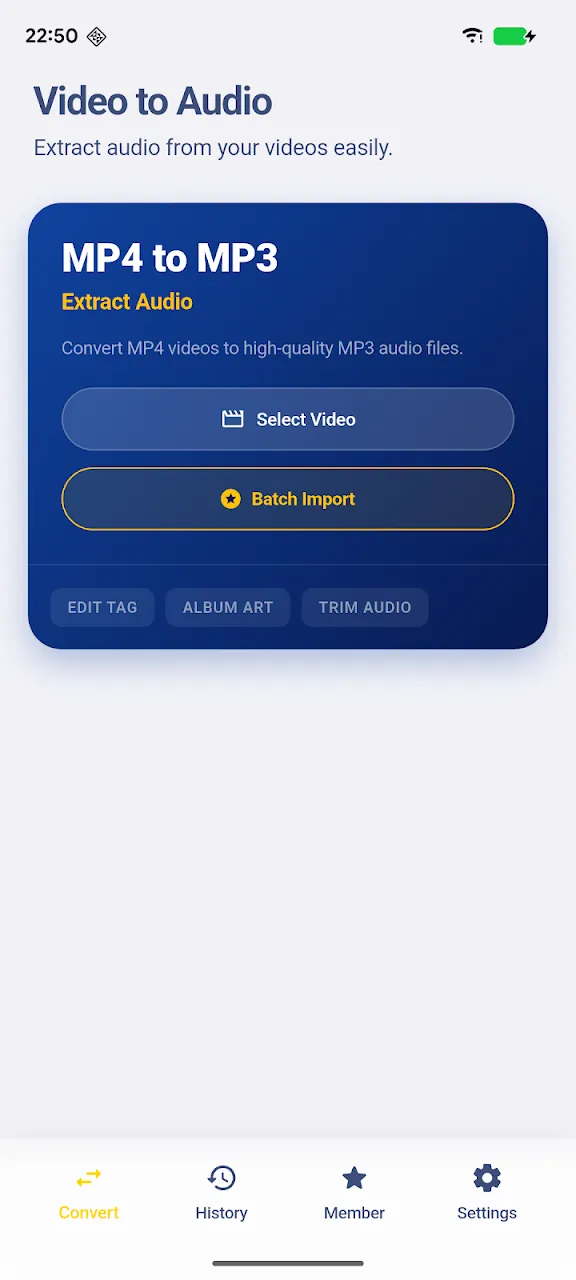
2. Select Your Video File
Once you open the app, you will be greeted by a clean, intuitive interface. Tap the Select Video button to browse your device's gallery or file manager. The app supports a wide range of video formats, including MP4, MKV, AVI, MOV, and WEBM.
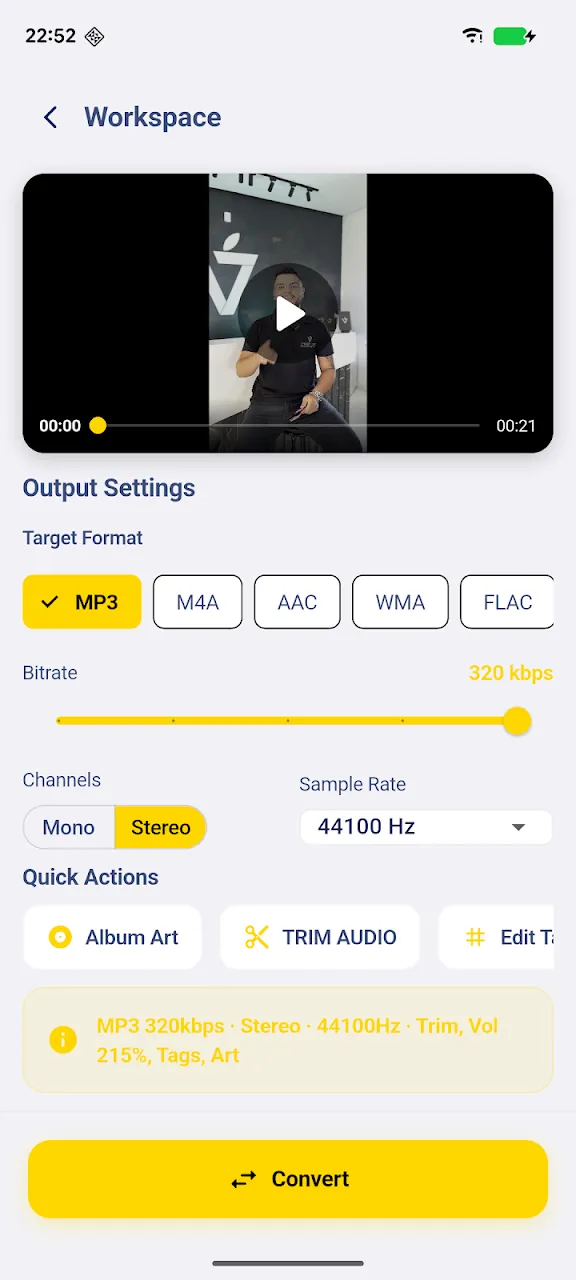
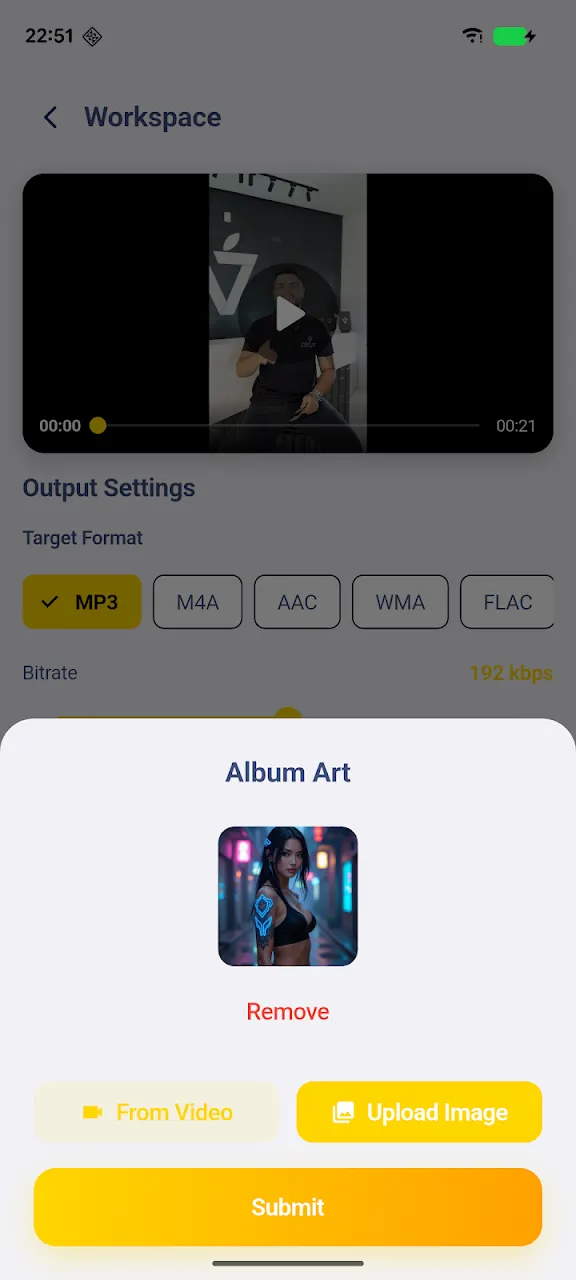
3. Choose Your Output Settings
This is where you can customize the extraction process to suit your needs. If you want the highest quality, you can choose to extract the original audio track without any compression.
If you want to save space, you can customize the output:
- Format: Select MP3, AAC, WAV, FLAC, or OGG.
- Bitrate: Choose anywhere from 64kbps (for voice recordings) up to 320kbps (for high-fidelity music).
4. Start the Conversion
After configuring your settings, simply tap the Convert button. The app's fast native processing engine will immediately begin extracting the audio track. Because it runs locally, even large video files are processed in a matter of seconds.
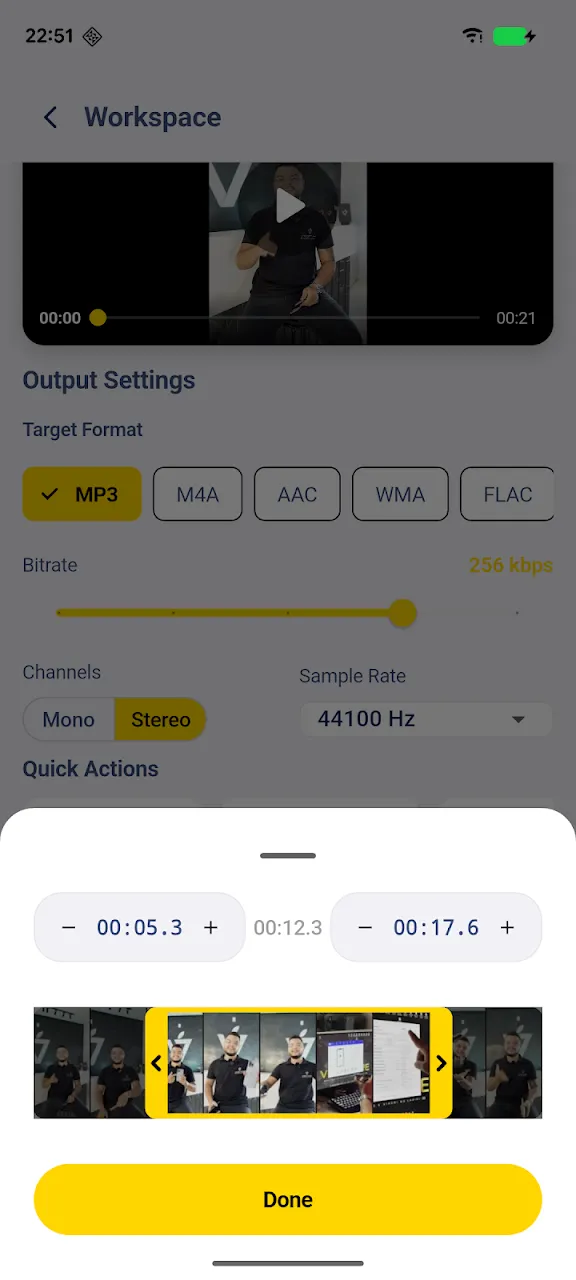
5. Access Your New Audio File
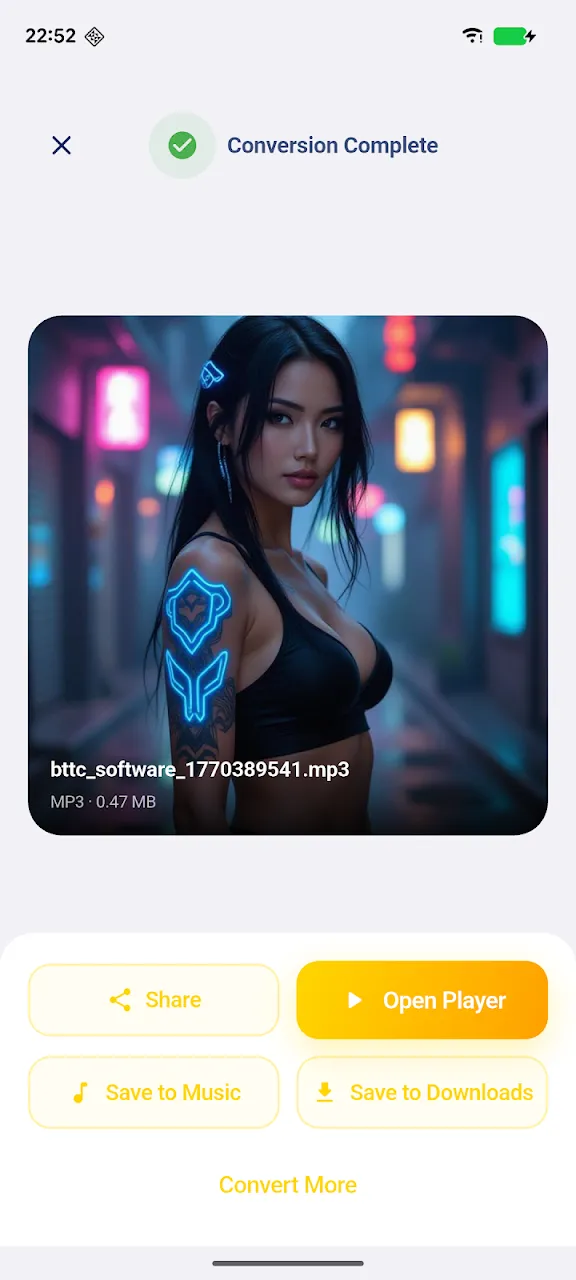
Once the extraction is complete, you can find your newly created audio file in your device's music folder, or directly within the app's built-in file manager. You can now listen to it offline, share it with friends, or set it as a ringtone!
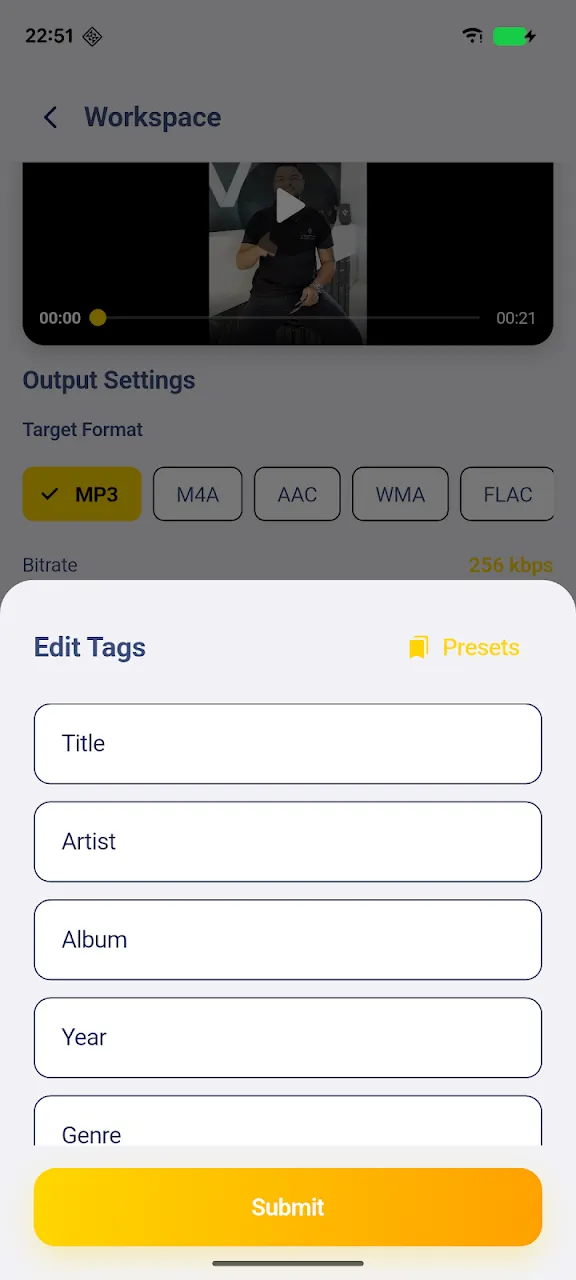
Bonus Feature: Batch Processing
Got an entire folder of music videos you want to convert to an audio playlist? The app also supports background batch processing! You can select multiple videos at once, add them to the queue, and let the app extract all the audio tracks while you use other apps.
Conclusion
Extracting audio from a video doesn't have to be a complicated or insecure process. By using a dedicated offline tool like Mp4 To Mp3 Converter, you can quickly and safely build your audio library right on your Android device.
📥 Download the App to Start Converting Offline
Ready to try it? Get the official app on the Google Play Store for secure, offline processing.