How to Convert HEIC Images to PDF on Android Offline
Learn the easiest way to compile your iPhone HEIC photos into a professional, universally compatible PDF document on your Android device.
In This Article
This article covers How to Convert HEIC Images to PDF on Android Offline. Learn the easiest way to compile your iPhone HEIC photos into a professional, universally compatible PDF document on your Android device.
Key Takeaways
- Published: May 15, 2026
- Category: Tutorial
- Tags: HEIC to PDF, Image to PDF, Productivity
- Views: 735
- Reading time: ~11 min read
"Learn the easiest way to compile your iPhone HEIC photos into a professional, universally compatible PDF document on your Android device."
If you've ever tried to manage photos sent from an iPhone on your Android device or Windows PC, you've likely encountered the HEIC file format. While HEIC is excellent at saving storage space, it is notoriously difficult to open, print, or share on non-Apple devices.
One of the most professional ways to share a collection of HEIC photos—such as receipts, scanned documents, or portfolio images—is to combine and convert them into a universal PDF document. In this tutorial, we will show you how to quickly convert HEIC images to a PDF on your Android device without needing an internet connection.
[!TIP] ⚡ Quick Answer: How to do it? Simple 3-step guide using Photo & HEIC to PDF Converter offline:
- Launch App: Open the application on your Android device.
- Select Files: Choose the photos or documents from your gallery.
- Convert: Adjust settings and tap convert. The process completes locally on your phone to keep your files secure.
📊 Comparison: Local Android App vs. Online Converters
| Feature | BTTC Offline App | Online Web Tools |
|---|---|---|
| Internet Required | No (100% Offline) | Yes (Required) |
| Privacy & Security | Safe (Files stay on device) | Risk (Files uploaded to cloud) |
| Processing Speed | Instant (Device hardware) | Slow (Depends on upload speed) |
| File Size Limit | No Limit | Usually restricted (< 50MB) |
| Batch conversion | Supported for free | Often paid/pro feature |
Why Convert HEIC to PDF?
- Universal Compatibility: Every modern device, browser, and operating system can open a PDF natively.
- Document Compilation: If you have 10 photos of a contract, sending them as 10 separate HEIC files is messy. A single 10-page PDF is professional and organized.
- Fixed Formatting: PDFs ensure that your images display exactly as you intended, without layout shifts or quality degradation.
Step-by-Step Guide
We will use the Photo & HEIC to PDF Converter app, which is specifically designed to handle Apple's High-Efficiency Image Format completely offline.
1. Launch the App
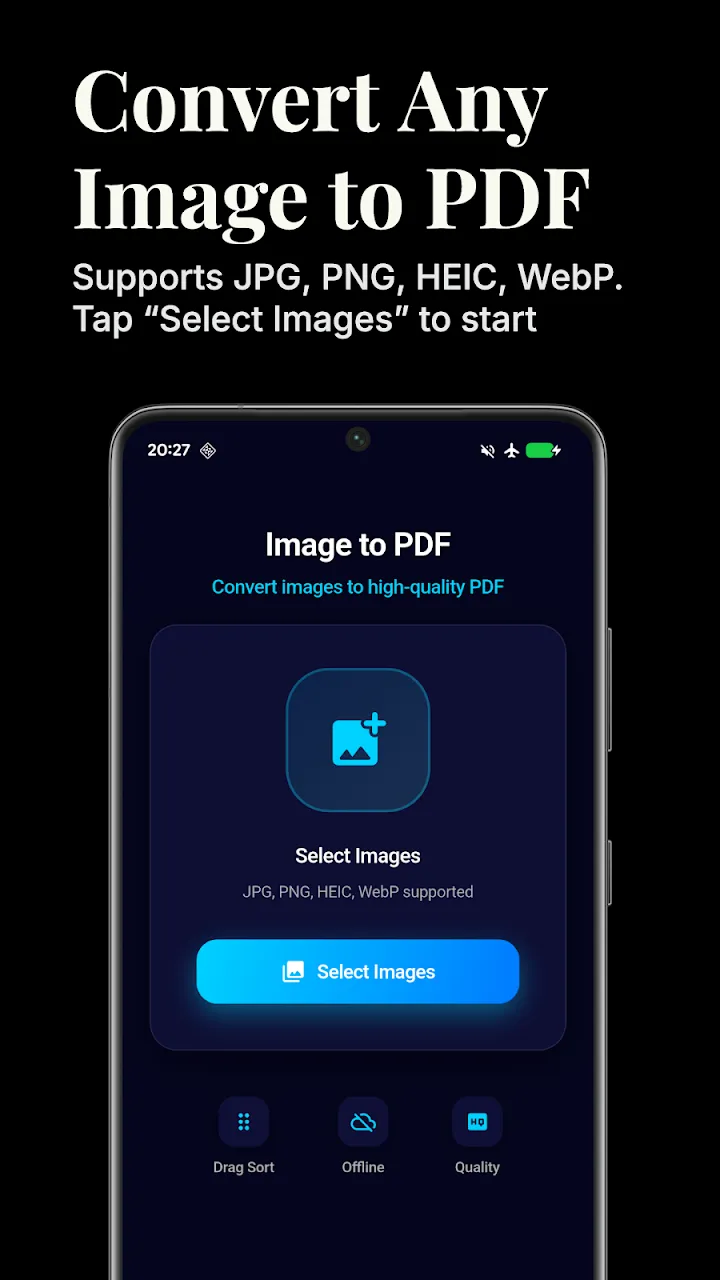
Install the app from the Google Play Store and open it. You'll be greeted by a simple interface focused on getting the job done quickly.
2. Select Your HEIC Images
Tap the Add Photos button to browse your gallery. You can select multiple HEIC images (as well as standard JPGs and PNGs) at the same time. The app processes the HEIC files directly, meaning you don't need to convert them to JPGs first!
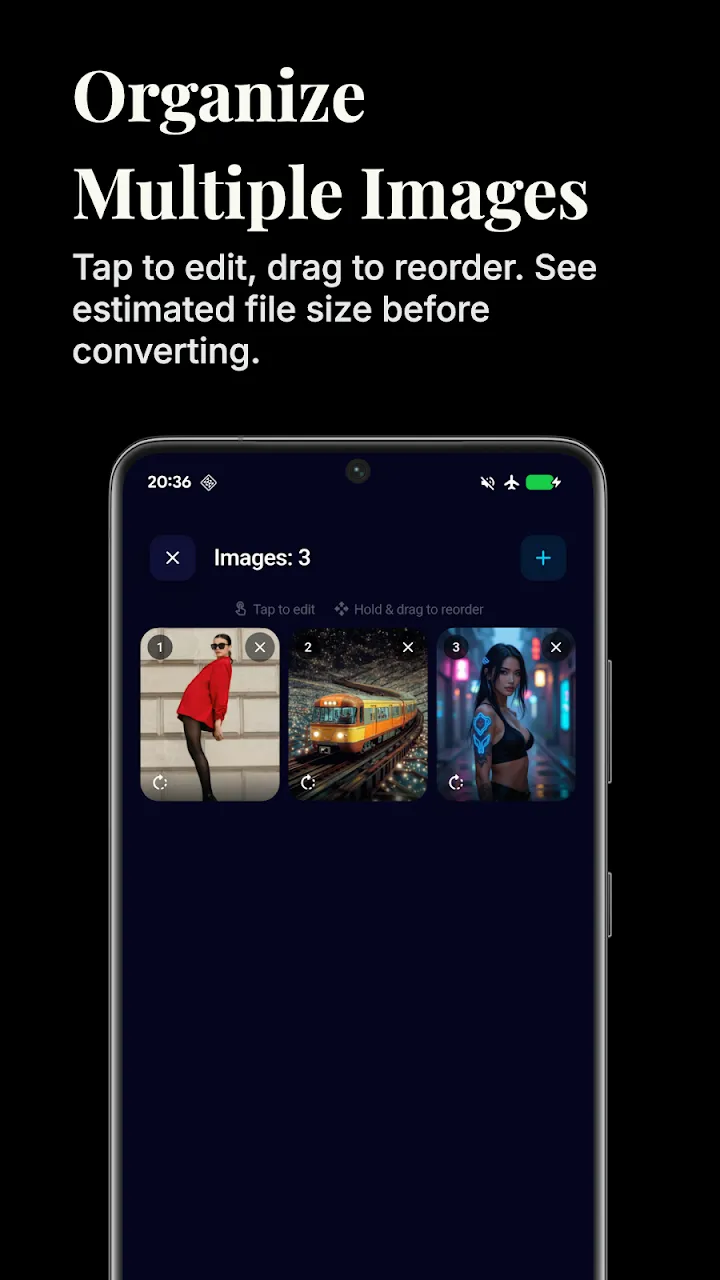
3. Arrange Your Pages
If you are compiling a multi-page document, the order of the images matters. The app allows you to drag and drop the selected photos to rearrange their sequence before generating the PDF.
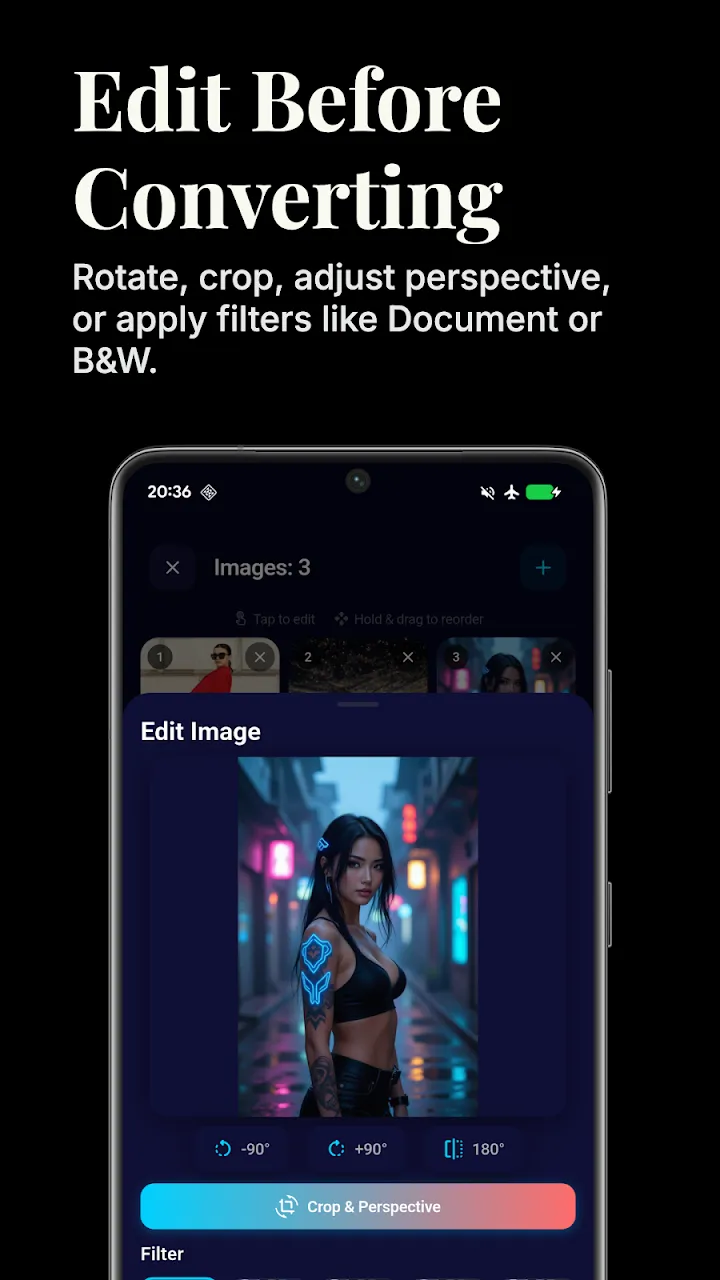
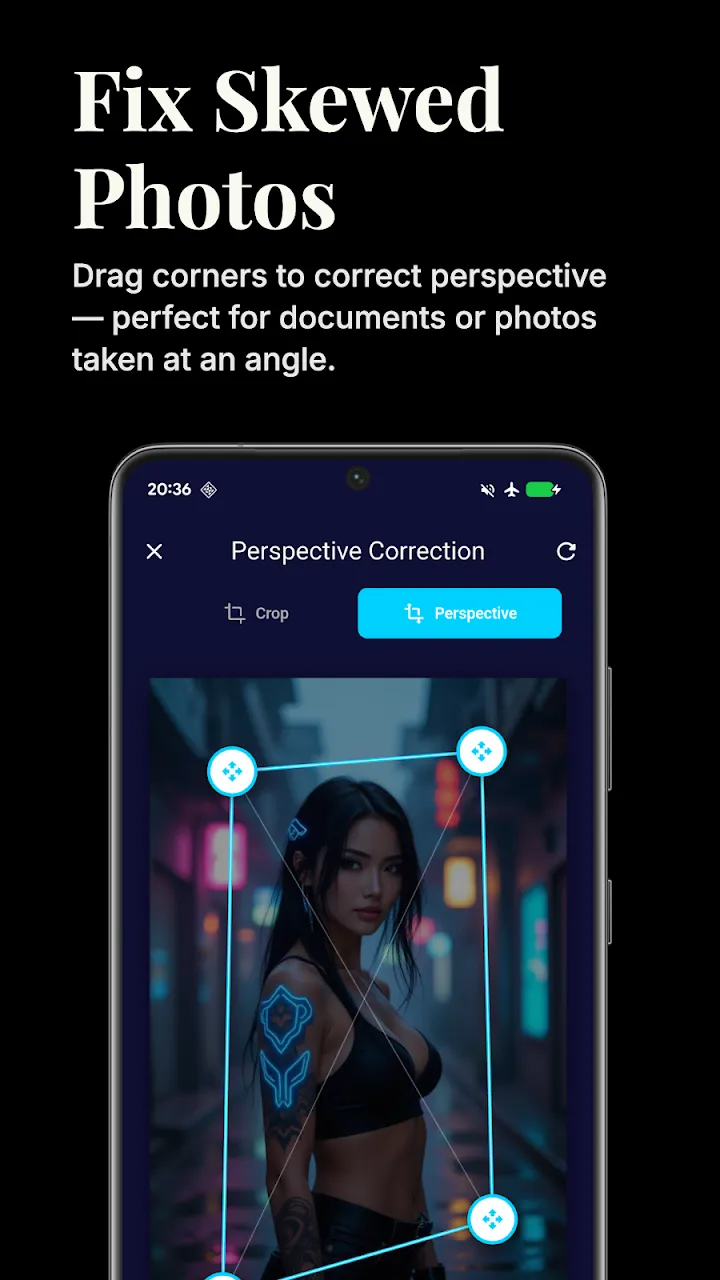
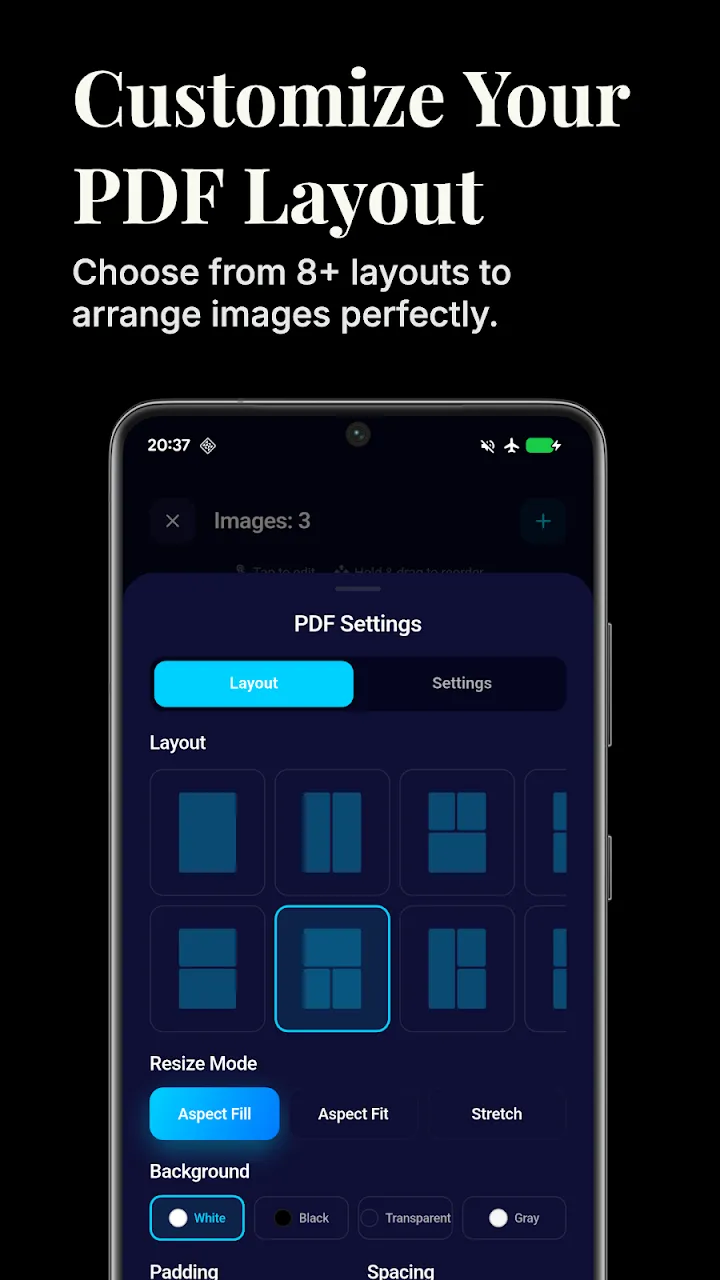
4. Customize PDF Layout Settings
Before converting, you can customize how your images will be presented in the final document:
- Page Size: Choose standard A4, Letter, or a custom size.
- Orientation: Force Portrait or Landscape, or let the app automatically decide based on the image dimensions.
- Margins: Add padding around the images for a cleaner look.
5. Generate and Share
Tap the Convert to PDF button. Because the app operates 100% locally on your device, the conversion happens in seconds, and your private photos are never uploaded to a cloud server.
Once generated, you can preview the PDF and instantly share it via email or messaging apps.
Conclusion
Dealing with HEIC files on Android doesn't have to be a headache. By converting them directly into a universally accepted PDF format, you can easily archive documents, share portfolios, and maintain a professional presentation—all without using a single byte of mobile data.
📥 Download the App to Start Converting Offline
Ready to try it? Get the official app on the Google Play Store for secure, offline processing.