How to Batch Convert HEIC to JPG on Android (Offline & Keeps Exif Data)
Looking for the best HEIC to JPG Converter for Android? Learn how to convert iPhone HEIC photos to JPG/PNG offline while preserving original Exif metadata.
How to Open iPhone Photos on Android: The Ultimate Guide to Converting HEIC to JPG (2026)
Looking for the best HEIC to JPG Converter for Android? Learn how to convert iPhone HEIC photos to JPG/PNG offline while preserving original Exif metadata.
Have you ever received a batch of travel photos from a friend using an iPhone, only to find that your Android gallery can't open them? Or maybe you transferred files from your iPad to your PC, and they are all stuck in a weird .heic format?
If you are Googling "HEIC to JPG converter" or "how to open HEIF files on Android," you are not alone.
In this guide, I will explain what HEIC is and show you the safest, fastest way to batch convert them to JPG without uploading your private photos to the cloud.
What is a HEIC / HEIF file?
HEIC (High Efficiency Image Container) is the default image format used by Apple devices since iOS 11. It is technically superior to JPG because it compresses images to half the file size without losing quality.
However, the problem is compatibility. Many Android devices, older Windows PCs, and even popular photo editors still do not natively support HEIC files. To use these photos, you must use a HEIC Converter to turn them into standard formats like JPG or PNG.
Why You Should Avoid "Online" Converters
When you search for a solution, the first results are often "Free Online HEIC to JPG Sites." As a developer and privacy advocate, I strongly recommend avoiding these for personal photos. Here is why:
- Privacy Risks: You are uploading your personal memories (family photos, documents) to an unknown server. You have no control over who sees them or if they are permanently deleted.
- Exif Data Loss: This is a huge issue for photographers. Most online tools strip away the Metadata (Date Taken, GPS Location, Camera Model).
- Result: When you download the converted JPGs, they all show "Today" as the date, completely messing up your photo gallery timeline.
The Best Solution: Use an Offline Android App
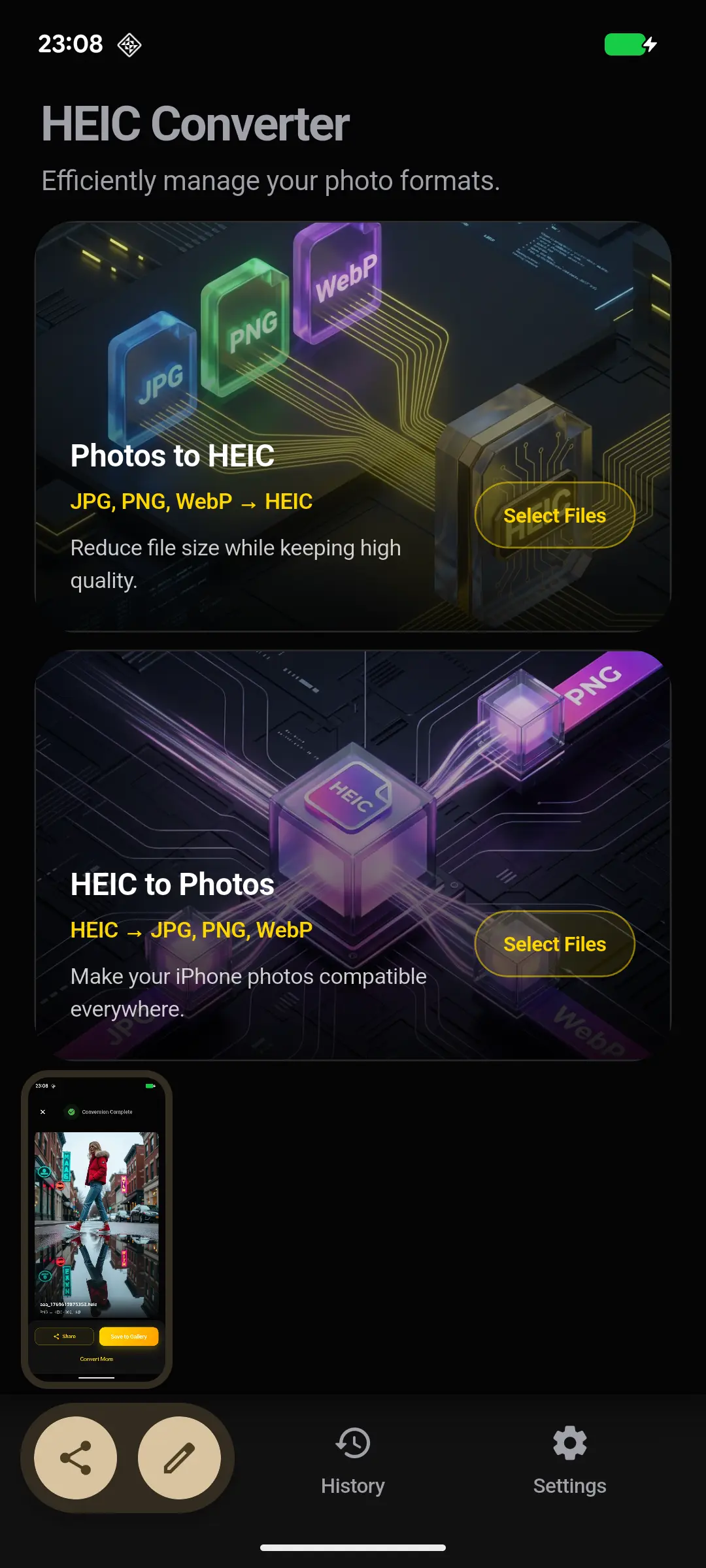
To solve these problems, I developed a dedicated tool: HEIC Converter - Offline.
Unlike online tools, this app runs entirely on your phone's local processor. It is designed to be the most reliable HEIF Converter for Android users.
Why this app is different:
- 🔒 100% Offline (Privacy First): Your photos never leave your device. The conversion happens locally, ensuring zero privacy risk and zero data usage.
- 📅 Preserves Exif Metadata: We use a specialized engine that copies the original Date Taken, GPS Location, and ISO data from the HEIC source to the new JPG. Your gallery timeline stays perfect.
- ⚡ Batch Conversion: Have 500 vacation photos? No problem. Select them all and convert them in one go.
- 🎨 Multi-Format Support: Need transparency? Convert HEIC to PNG. Need to save space? Convert HEIC to WEBP.
Tutorial: How to Batch Convert HEIC to JPG on Android
Follow these 3 simple steps to fix your compatibility issues instantly.
Step 1: Download the App
Get HEIC Converter for free from the Google Play Store. 👉 Download Link Here
Step 2: Scan and Select
Open the app. It will automatically scan your internal storage and SD card for all .heic and .heif files.
- You don't need to hunt through folders.
- Long-press to select specific photos, or tap "Select All" for bulk processing.
Step 3: Convert
Tap the Convert button.
- Format: Choose
JPG(Recommended for sharing) orPNG. - Quality: You can keep it at 100% or lower it to save space.
Tap "Start".
Within seconds, your photos are converted. You can now view them in your gallery, share them on WhatsApp/Instagram, or transfer them to your Windows PC without any issues.
Frequently Asked Questions (FAQ)
Here are some common questions about converting HEIC files on Android:
Q1: Does this app add watermarks to my photos?
A: No, absolutely not. We believe your photos belong to you. The converted JPG/PNG files are completely clean and free of any watermarks or logos.
Q2: Is it really free to use?
A: Yes, HEIC Converter is free to download and use. You can convert your photos without paying for a premium subscription.
Q3: Can I batch convert multiple HEIC files at once?
A: Yes! The app is designed for Batch Conversion. You don't need to convert photos one by one. You can select hundreds of images (or "Select All") and convert them all in one go while you do other things.
Q4: Do I need an internet connection?
A: No. As mentioned, this app works 100% Offline. Unlike online converter websites, we do not require you to upload your files to the cloud. This makes it faster and much more secure.
Conclusion
Don't let file formats stop you from sharing memories. Whether you are moving from iOS to Android or just need to send a photo to a friend, using a local HEIC to JPG Converter is the safest and fastest choice.